Authentication
The authentication section of the plugin settings allows you to configure how the plugin should authenticate when using the Jira Rest API.
Multi account support
It is possible to configure multiple accounts in order to retrieve data from multiple sources. This feature as been designed to support consulting company employee that are usually interacting with more than one company.
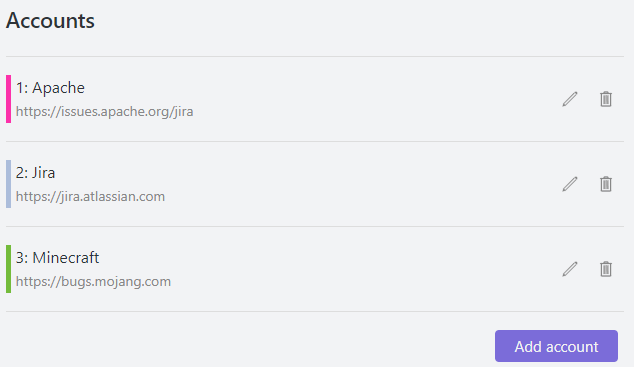
Alias
Mnemonic name of the account used to identify it.
Host
The host is the base URL of the Jira instance used for API requests. No matter if you use Jira Cloud or Jira Server, the way to get the host is the same.
For example, if you are working on a user story like:
https://issues.apache.org/jira/browse/AMQCPP-711
the host would be:
https://issues.apache.org/jira
Web Base URL
(Optional) The browser-facing base URL used when opening issue links in your browser.
In most cases, this can be left empty (the plugin will automatically use the Host address). However, if your Jira instance is accessed via an internal API endpoint, a reverse proxy, a VPN, or a local container address while human users browse Jira under a different public domain, you can set the Web Base URL to that public domain. All clickable links generated in Obsidian notes will point to this Web Base URL.
Authentication Types
The plugin supports the following authentication types:
- Open
- Basic Authentication
- Jira Cloud
- Bearer Token
Authentication Type: Open
This type of authentication is used to access public Jira instances as a guest. The advantage of this type of authentication is that you don't need to provide and store any credentials in the plugin, but very often, Jira instances don't allow this type of authentication in order to keep the data private.
Some example of Jira instances that support this type of authentication are:
https://jira.atlassian.com/
https://issues.apache.org/jira
https://jira.secondlife.com/jira
This type of authentication don't allow to use function like currentUser() in the JQL because there is no user logged in.
Authentication Type: Basic Authentication
This is the recommended authentication type when the plugin interacts with Jira Server / Jira Data Center.
The username and password are the same you use to login in the Jira website. If you are already logged in, you can try to open a browser incognito window and access to your Jira instance. The browser will ask you to login and you can try your credentials.
The specifications of this type of authentication can be found in the RFC 7617.
Authentication Type: Jira Cloud
This is the recommended authentication type when the plugin interacts with Jira Cloud.
You can create a new API token in Jira Cloud from Account Settings > Security > Create and manage API tokens (Official Documentation). It is usually recommended to generate a dedicated API token for this plugin.
Authentication Type: Bearer Token
This authentication is used to access Jira instances that uses OAuth2.0 / Personal Access Tokens (PAT).
The specifications of this type of authentication can be found in the RFC 6750.
Priority
The priority defines the order in which the accounts should be used to retrieve the data. It is recommended to put an higher priority to the accounts that are used the most in the Obsidian.md notes.
Color band
To help identify the Jira account used by each tag, it is possible to associate a color to each account. The color should be written in hexadecimal notation.

Additional Account Settings
Use 2025 search api
In August 2025, Atlassian replaced the legacy /rest/api/2/search endpoint on Jira Cloud with the new search API. If you connect to Jira Cloud or encounter HTTP 410 Gone errors when executing queries, toggle this option on for your account.
Disable icon fetching
By default, the plugin downloads issue type, priority, and status icons directly from your Jira instance. Enable this toggle to prevent downloading icons from the Jira server; the plugin will instead render bundled official Atlassian SVG icons. This is particularly useful in restricted intranet networks, to bypass CORS or authentication barriers for media assets, or to improve performance on mobile devices.
Security & Credential Storage
The plugin provides three methods for storing your Jira passwords and API tokens:
1. OS Keychain (SecretStorage) (Recommended for Desktop)
On platforms where the Obsidian SecretStorage API is supported (Obsidian v1.15+), credentials are securely saved in your operating system keychain (macOS Keychain, Windows Credential Locker, Linux Secret Service).
- Passwords and tokens are never written to
data.json. - If you sync your vault (e.g., via GitHub or Obsidian Sync), your secrets remain safely on your local device and will not be leaked to the sync repository.
2. Master Passphrase (AES-256-GCM) (Recommended for Cross-Platform Sync)
If you synchronize your vault across desktop and mobile devices (or platforms without Keychain support) and want to keep your credentials in sync:
- Passwords and tokens are encrypted using AES-256-GCM with PBKDF2 key derivation.
- When opening Obsidian, an unlock modal will prompt you to enter your Master Passphrase to decrypt the credentials for the active session.
- Only the ciphertext is stored in
data.json.
3. Plaintext (data.json) (Legacy)
Credentials are saved in plain text inside <vault>/.obsidian/plugins/obsidian-jira-issue/data.json.
If you use Plaintext storage and sync your vault (via Git, cloud drive, or sync services), your cleartext credentials may be exposed. We strongly recommend switching to OS Keychain or Master Passphrase in Settings > Jira Issue > Security.
API Calls Protocol
For security reasons, always use https:// in your host URLs. Unencrypted http:// connections transmit your authentication tokens and headers in cleartext over the network.