Rendering
The rendering section of the plugin settings allows you to configure some visualization settings of the plugin.
Default search results limit
This setting allows you to configure the default limit of search results displayed when using the jira-search fence.
You can override this setting in the jira-search fence by using the limit attribute.
Render style
This setting allows you to choose the visual appearance of Jira tags, inline issues, and status badges across your notes:
- Modern (Default): Designed specifically to blend natively with Obsidian themes. Uses refined typography, theme-adaptive borders, and soft pastel status badges with high legibility in both light and dark themes. Changes apply instantly in both Reading View and Live Preview.
- Classic: The legacy style using high-contrast, fully-colored Bulma-inspired badges.
Color schema
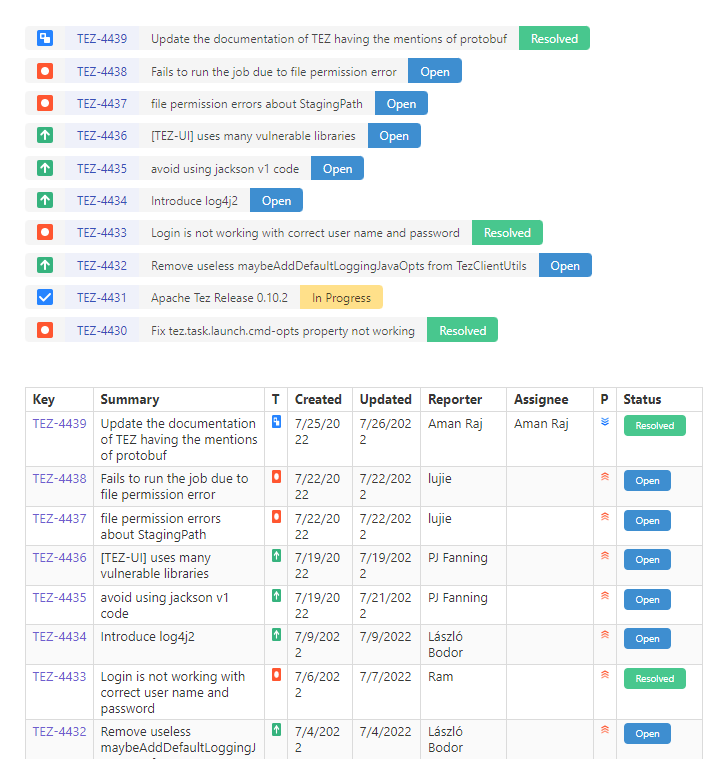
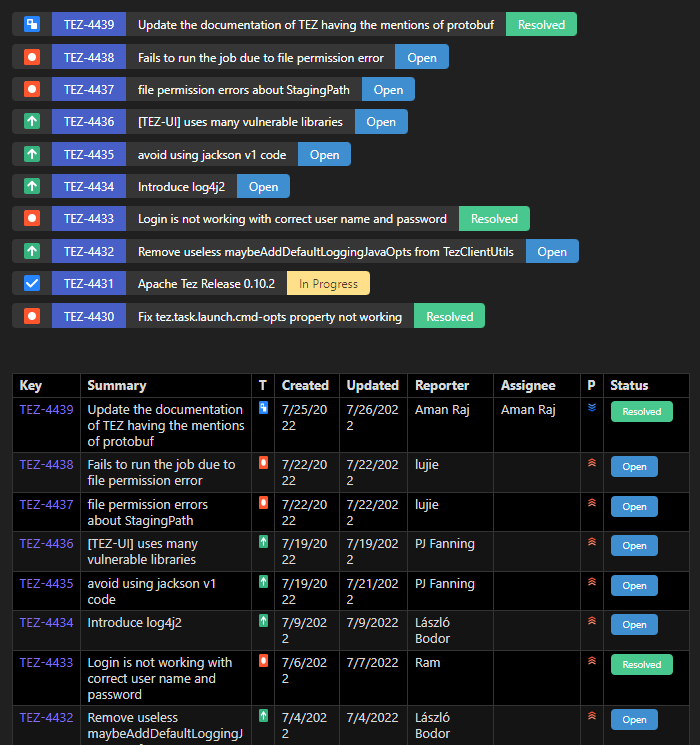
This setting allows you to enable the dark/light mode of the plugin components rendering, or have it follow your Obsidian theme automatically (Follow Obsidian, Light, Dark).
Examples:
Issue URL to tag
This settings allows you to enable the conversion of Jira issue URL to tags. The plugin looks for URL that are composed like:
<host>/browse/<issue-key>
Example:
https://my-project.jira.com/browse/ABCD-1234
Inline issue prefix
This setting allows you to configure the prefix used to identify inline issues. Inline issues are composed by the prefix followed by the issue key.
Example:
JIRA:ABCD-711
The default value is JIRA:.
If this field is kept empty, this feature will be disabled.
Issue summary maximum width
This setting limits the width of issue summaries in tags. The value is expressed in rem and defaults to 20.
When a summary is wider than the configured limit, it stays on one line and is truncated with an ellipsis. Optional scrolling can reveal the complete text in inline issues, jira-issue blocks, and list search results.
Issue status maximum width
This setting limits the width of issue statuses in tags. The value is expressed in rem and defaults to 2.
Statuses wider than the configured limit use the same truncation and optional scrolling behavior as issue summaries. The issue key and icons always remain fixed.
Animate overflowing text
This setting enables horizontal scrolling for summaries and statuses that exceed their configured maximum width. It is disabled by default.
The full summary and status remain available as a tooltip. When reduced motion is enabled in the operating system, scrolling stays disabled even when this setting is enabled.
Show color band
Display an account-specific color strip on the left border of inline issues, making it easy to identify at a glance which Jira account or organization an issue belongs to.
Show Jira link
When enabled, the result count text in the footer of jira-search tables becomes a direct clickable link to your Jira instance executing the exact JQL search query.